Hi Will, Dorian here!
This is super easy to do in Noesis, as we provide an Element called a
TabControl which includes all of this sort of functionality out-of-the-box!
In Noesis Studio, in the Add Element Panel (Ctrl+2), you can find this by searching for it, like so:
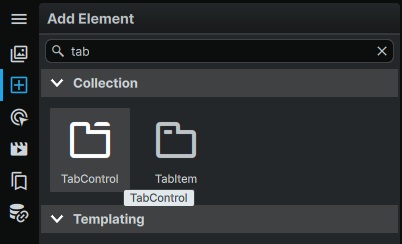
- TabControl_Search.jpg (19.77 KiB) Viewed 9698 times
and then you can simply drag-and-drop it onto your Stage or in the Navigator:
By default, it comes with two tabs, and two content areas (one associated with each tab).
If you want to add more Tabs, the easiest way is to just duplicate either of the existing TabItems:
In terms of populating each Tab's Content area, you can simply drag any amount of Elements directly into each TabItem's Grid in the Navigator.
You can essentially think of inside of each TabItem as a 'mini page'
within the Tab, which you can add further Elements into.
For example, in this case, I added a StackPanel that has a TextBlock and an Image to one of my TabItems:
If you want to change the label that each Tab shows, you can simply click on any TabItem, and from its Properties Panel on the right of the screen, change the 'Header' Property to be a custom label:
If you want to customize the physical appearance of the Tabs, you can right click on any of them, and create a new Template for them as desired:
And lastly, in terms of the functionality of having Tabs switch between their respective content areas, there is nothing else you need to do! Just by virtue of pressing each tab, it will automatically switch, without having to worry about setting up Enumerations, any custom Triggers, or any other backend functionality.
And that's pretty much it!
Otherwise, you can find a little more information about the TabControl at:
📘NoesisGUI Documentation: Tab Control
Let us know if this matches what you were looking for.
Have a great weekend!
- Dorian