

📘 Data Configuration
🏘️ NoesisGUI ▸ 🏠 Noesis Studio ▸ 📘 Working With Data ▸ 📘 Data Configuration
Overview
Noesis Studio comes out-of-the-box with a wide range of features designed to empower developers to create, edit, and manage all of the 'mock' Design-Time Data used to power Data-driven interfaces right within the visual editor.
Studio features a fully native, built-in toolset in which Design-Time 📑 Data Structures and Properties, and Design-Time 📑 Enumerations can be created and managed, all completely within the application.
Warning
In the Beta version of Noesis Studio, Data is not subject to the application's Undo/Redo features. Until these features are implemented, it is therefore highly recommended to manipulate Data in conjunction with Source Control.
The Data Panel
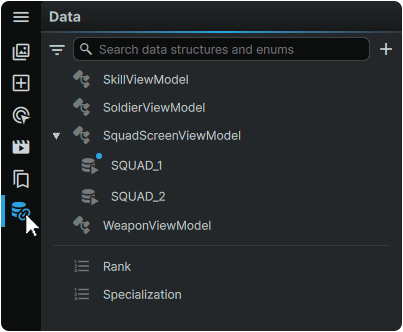
Within Noesis Studio, Data can be created, edited, and managed from the 📘 Data Panel. This can easily be accessed by either clicking on the Data tab on the left of the application window, or by simply pressing Ctrl (Hold) + 6 on the keyboard.
Data Structures and Properties
Data Structures lie at the heart of Data, and form the core container for all Data used to power Data-driven interfaces.
Data Structure Creation
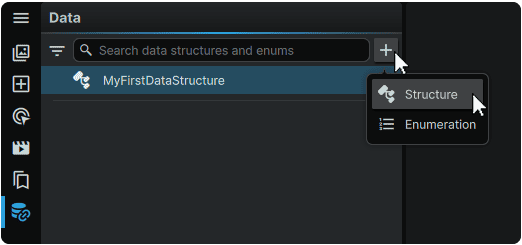
New Data Structures can be created by clicking on the [+] (Add) icon at the top-right of the Data Panel, then selecting 'Structure'.
Data Structure Properties
Each Data Structure is composed of one or many Data Properties, with each corresponding to a 'slot' within a Data Structure that a Data Value can be stored in.
A Data Stucture's 📘 Properties Panel can be exposed by selecting a Data Structure from the 📘 Data Panel:
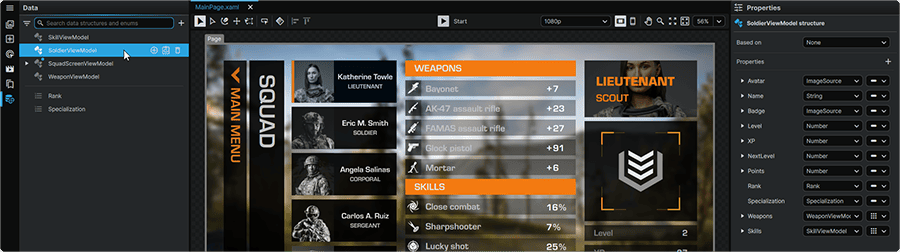
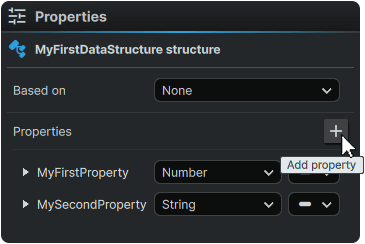
Data Properties for the Structure can be created by clicking the + (Add) icon at the top-right of the Data Structure Properties Panel:
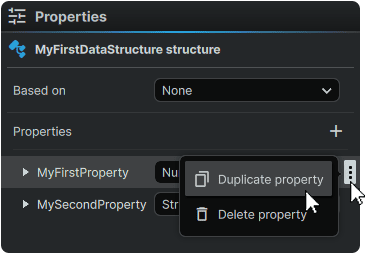
A Data Property can duplicated or deleted by hovering over it, clicking on its ⋮ (3-Dot) menu icon, and selecting the desired operation:
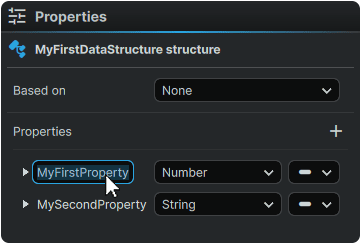
The Data Property can be renamed by double-clicking on it in the Data Structure Properties Panel. The given name is what Element Properties will use to Bind to it, in order to present the Value contained within it:
The Data Type dropdown is used to set what type of value will be contained within its slot:
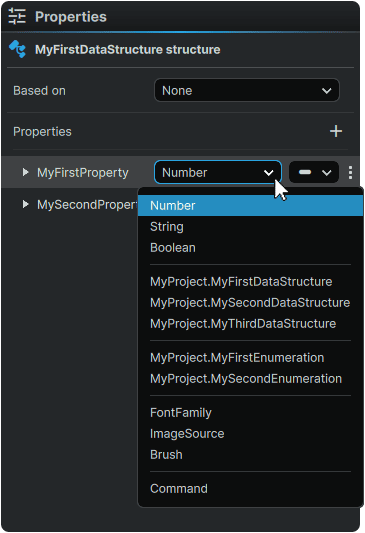
Selecting an appropriate Value Type provides creators with a layer of self-validation, and protection from unpredictable outcomes which could negatively impact functionality of the interface. For example, selecting a Number type would prevent a creator from inserting Hello World as a Value which would break any instance where a numerical value is expected as part of a mathematical operation.
Furthemore, selecting a Type corresponding to the type of Value that will be used in practice provides the user with more feature-rich Data creation tools.
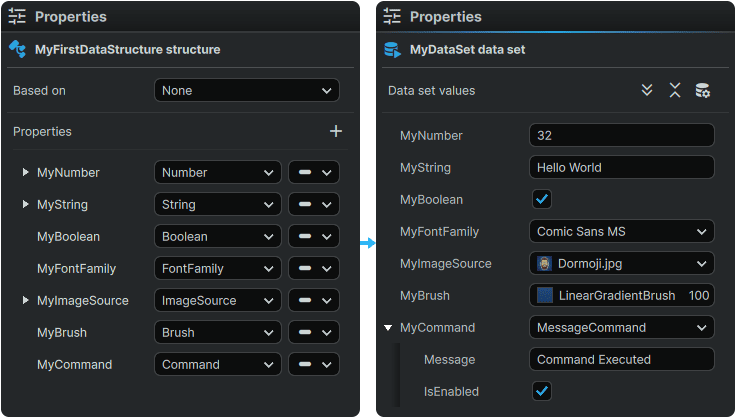
For example, selecting a FontFamily type presents creators with an easy dropdown menu from where a font can simply be selected from a list of available options, rather than having to manually type out the font's name and/or path.
It is also through Data Propeties that 📘 Data Structure Nesting can be achieved. This allows the creation of highly modular Data Structures where the content of a Data Structure can be easily relayed into one, or many others.
Data Structures can be relayed into any other Data Structure by simply creating a new Data Property, and selecting the desired Data Structure to relay into it from the dropdown menu.
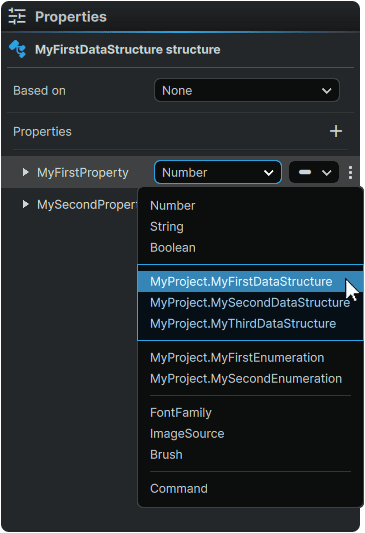
Through this exact same method, it is also possible to relay 📑 Enumerations into a Data Structure:
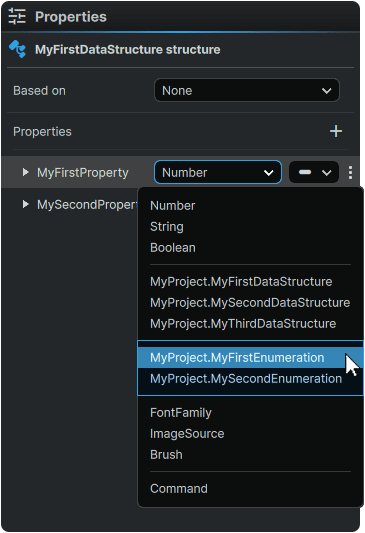
Note
The prefix directly preceding a relayed Data Structure and/or Enumeration name corresponds to the Data Namespace that it exists within.
Lastly, any Property within a Data Structure can either be set to serve a Single Value or a Collection of Values by opening the dropdown, and selecting the desired manifestation of the Data Property:
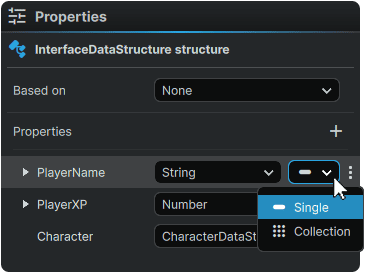
When Single is selected, a single instance of the Data Property and its Value will be available during 📘 Data Set Creation.
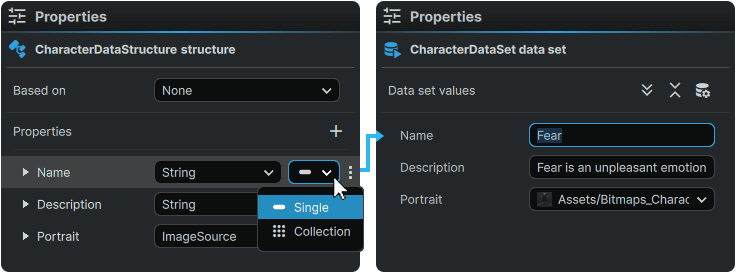
In the example above, a single Name slot is included as part of the Character Data Structure, representing one character being assigned one name.
Selecting 'Single' can also be applied to relaying another Data Structure and its Data Properties in its entirety:
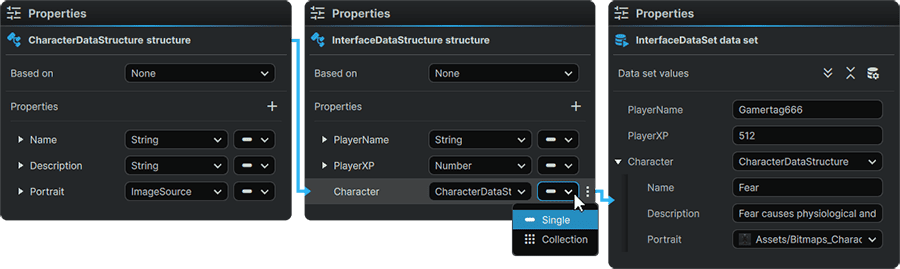
In the example above where a Character Data Structure has a Name, a Description, and a Portrait, a single instance of a character containing these three slots is made available to the Data Structure it is relayed through.
Selecting Collection on the other hand, allows creators to efficiently create arrays of Data that share identical Properties between the individual members of the array:
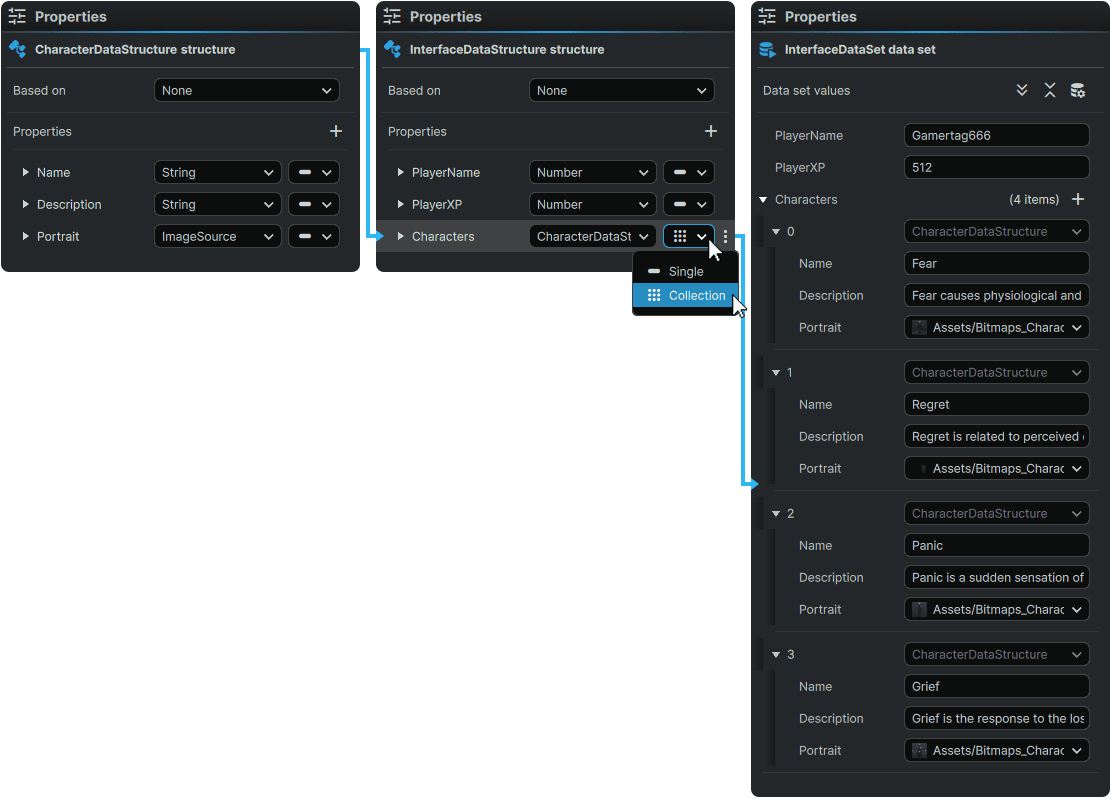
In this example, setting the Characters Data Property as a 'Collection' allows for multiple Characters which all use the exact same Character Properties of Name, Description, Portrait to be served to the host Data Structure as individual units.
Setting a Property as a 'Collection' allows the Character Data Structure and its Data Properties to essentially be procedurally multiplied to create many characters which each share the same core Properties, but that each have their own unique Data Values.
Enumerations
Enumerations (oftentimes referred to as 'Enums') provide a powerful method to create an ordered and labeled list of Data Values.
Processing Data Values as an Enumeration offers the ability to leverage special functionality related to procedural sequencing and incrementation, in either a descending or ascending fashion.
For example, a common use case for Enumerations would be to define Ranks:
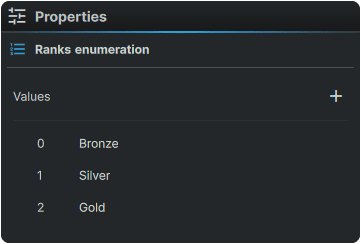
In the example above, using an Enumeration (instead of a meaningless number) allows us to take advantage of the fact that above all else, it functionally provides a sense of relative relationship between each member.
From simply placing our Ranks in an Enumeration, we can extract that:
- Bronze is the lowest and first Rank of the sequence.
- Gold is the highest and last Rank of the sequence.
- Silver is the Rank after Bronze.
- Bronze is two ranks separated from Gold.
- Ranking down one Rank from Silver produces a Bronze Rank
- Ranking up one Rank from Silver produces a Gold Rank.
- etc...
Although these facts may appear trivial or obvious from a human perspective, storing equivalent Ranks into any other format than an Enumeration, would not natively offer this level of interrelational knowledge to the machine systems utilising them, and are therefore an incredibly powerful tool for procedurally-driving interfaces.
Note
An Enumeration uses zero-based numbering. Therefore the Enumeration's sequence starts at 0, and not 1.
Enumeration Creation
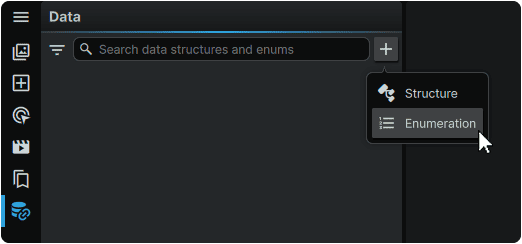
New Enumerations can be created by clicking on the [+] (Add) icon at the top-right of the Data Panel, then selecting 'Enumeration'.
Enumeration Values
Each Enumeration is composed of an ordered list of individual Values each assigned to a number within a sequence of 0 to ∞.
New Values for the Enumeration can be created by clicking [+] (Add) icon at the top-right of the Enumeration's Properties Panel.
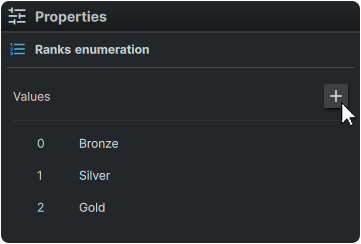
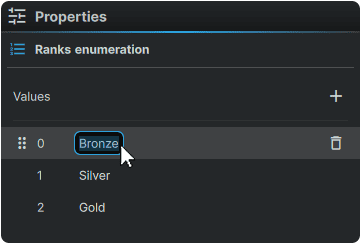
The name of any Value can be changed by double-clicking on its unique identifier, then inputting a new value:
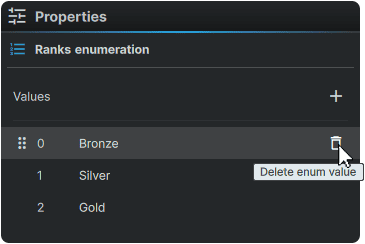
Removing a line item within an Enumeration can be performed by hovering over it in the Enumeration's Properties Panel, then clicking on its 🗑 (Delete) icon:
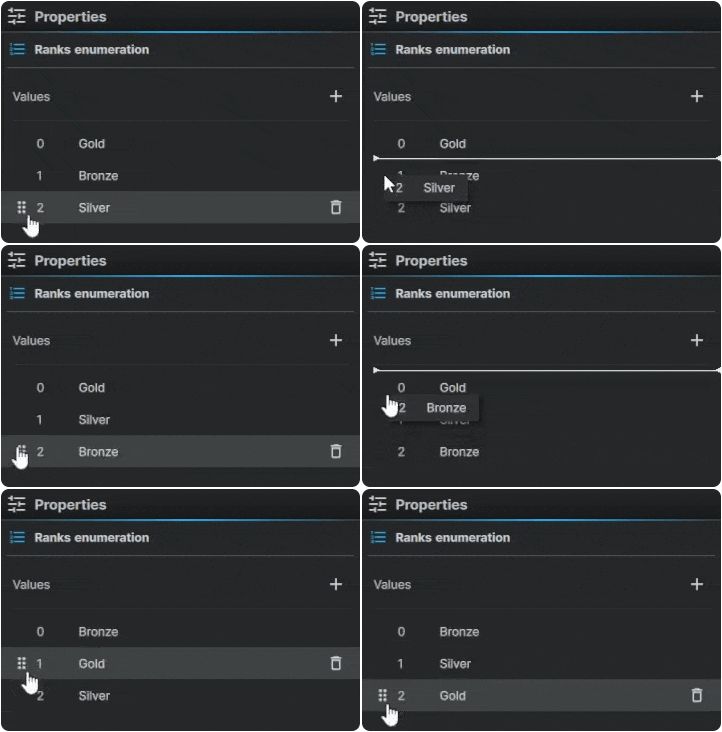
Individual line items can be re-ordered within the sequence at any time by clicking-and-dragging on the individual line item's ⋮⋮ (Drag) icon, and slotting it into a new position:
Working With Data
- 📘 Data Introduction
- 📘 Data Sources
- 📘 Data Configuration
- 📘 Data Utilization