


📘 Canvas Element
🏘️ NoesisGUI ▸ 🏠 Noesis Studio ▸ 📘 Canvas Element
Overview
The Canvas Element stands out among the many available framework Elements by offering a system to compose its 'children' Elements using absolute positioning.
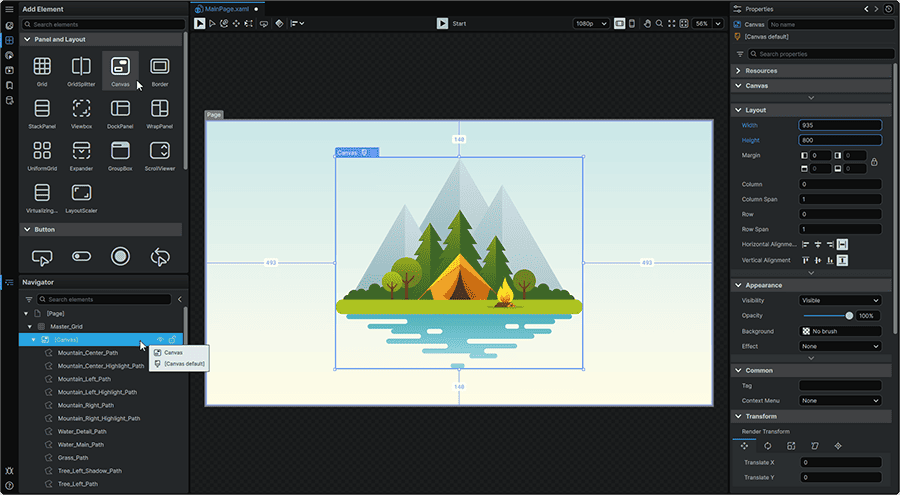
Laying out Elements within a Canvas Element offers an experience similar to composing within a canvas in many popular desktop design applications, where each item is placed at coordinates defined by a horizontal (X) and vertical (Y) position relative to the edges of the canvas.
As such, the Canvas is an ideal choice for compositions or artwork where the positioning of each Element within it is meant to be fixed within its internal layout.
By default, Elements within the Canvas are positioned relative to the Top and Left edges, but via a 'child' Element's 📘 Properties Panel, its position can be set to use the Bottom and Right edges.
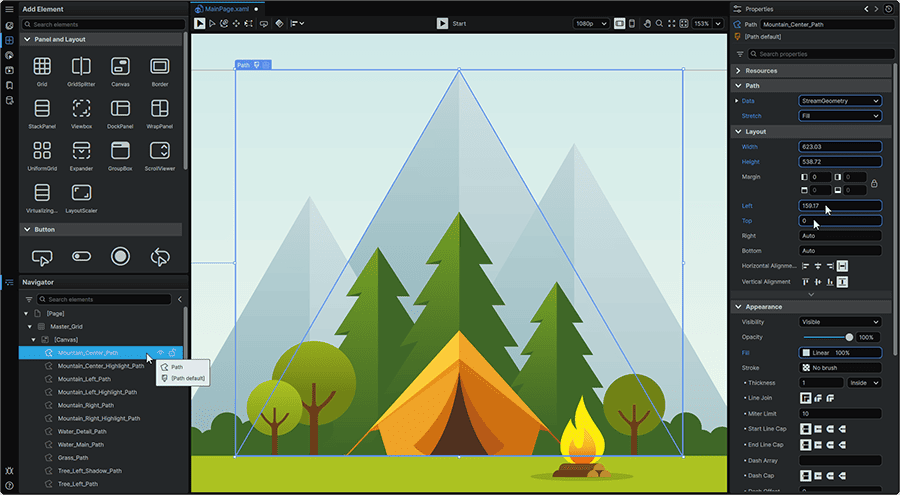
Since all Elements within a Canvas Element are placed at fixed coordinates that don't follow the dynamic 'layout' mechanics of other 📘 Panel & Layout Elements, it also makes it particularly well-suited for compositions containing Elements meant to overlap each other without the cross-interactions between Elements in a hierarchy usually found throughout many of the framework's Layout Elements.
Note
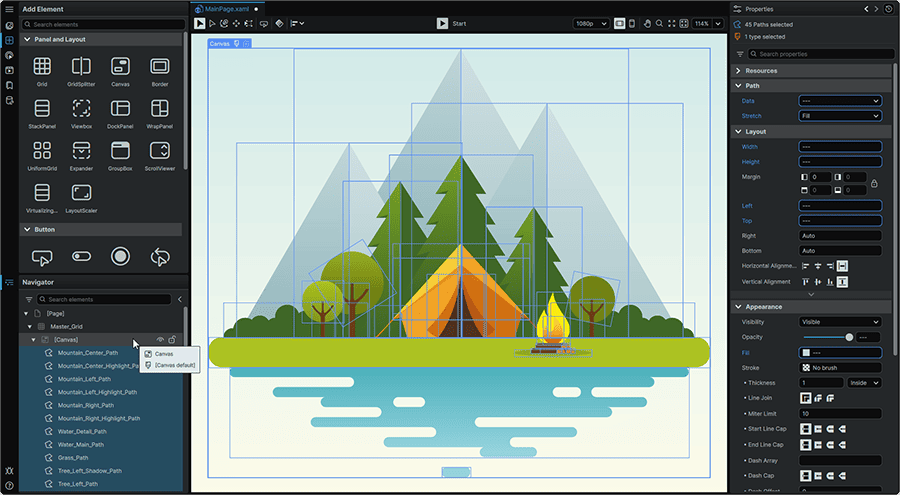
Since the 'children' Elements placed within a Canvas use absolute positioning, the Horizontal Alignment and Vertical Alignment layout Properties do not take effect within the context of a 'parent' Canvas Element.
Usage Guide
| 🌟 Strengths: | • Ability to set absolute positions for its 'children' Elements.
• Ability to position its 'children' Elements relative to the Top, Bottom, Left, or Right of the Canvas.
• Ability to contain 'children' Elements without having them 'clip' to the Canvas Element's frame.
|
| 📝 Considerations: | • Not an ideal choice for responsive or dynamic layouts.
• Elements cannot be procedurally centered within it.
|
| 📌 Typical Use Cases: | • Diagrams
• Drawing apps
• Custom draggable UIs
|
Scaling Canvas Element Compositions
As the 'children' of Canvas Elements employ absolute positioning independent of any dynamic or responsive layout mechanics found in many other Elements, scaling a Canvas Element up or down does not scale its contents alongside it, and only resizes the dimensions of the Canvas Element itself.
Since a Canvas Element's 'children' Elements are positioned in absolute units relative to the chosen edges of the Canvas Element's frame, resizing a Canvas Element will change the position of the Elements within it, maintaining the positional values of its 'children' Elements relative to itself.
To benefit from being able to proportionally scale a Canvas Element's composition as a whole in a manner that respects its internal relative positionings and sizings, it can easily be enveloped in a 📘 Viewbox Element by right-clicking on it in the 📘 Navigator Panel, and from its context menu, navigating to the 'Layout' category, and under the 'Group Into' section, selecting 'Viewbox'.
In this model, the Canvas Element can be composed at its 'native dimensions', and the Viewbox's Width and Height Properties used to set the size to render it at on-screen.