


📘 Resources Panel
🏘️ NoesisGUI ▸ 🏠 Noesis Studio ▸ 📘 Resources Panel
Overview
A Resource is a reusable, dynamically-updatable item that can be applied to Elements, or individual Properties. Resources are ideal for any presentation or functional element that is used in multiple places throughout an interface. Using a Resource allows for a higher degree of consistency within the application, and reduces the amount of repetition required to construct an interface.
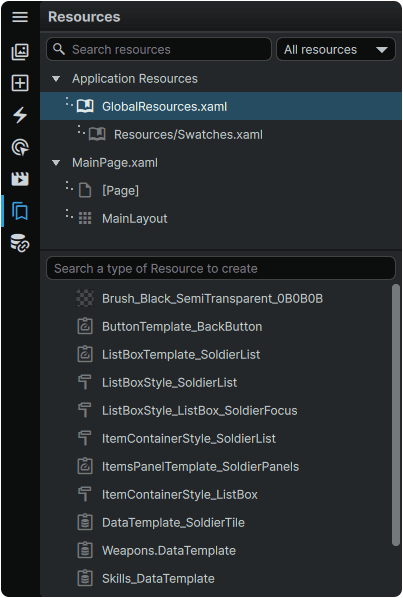
Resources have two defining attributes:
1) Resources can be dynamically applied to any Element of the same type, or a Property of a compatible type.
For example:
- A Button 'Style' Resource can be applied to any Button of the 📘 Button Class.
- A 'Solid Color Brush' Resource can be applied to any Property to which a color can be applied; such as the Foreground, Background, or Border property, among others.
2) Resources are stored in, and circulated from a centralized location.
Any change made directly to a Resource, will propagate it to any place where it is used.
Resource Storage Architecture
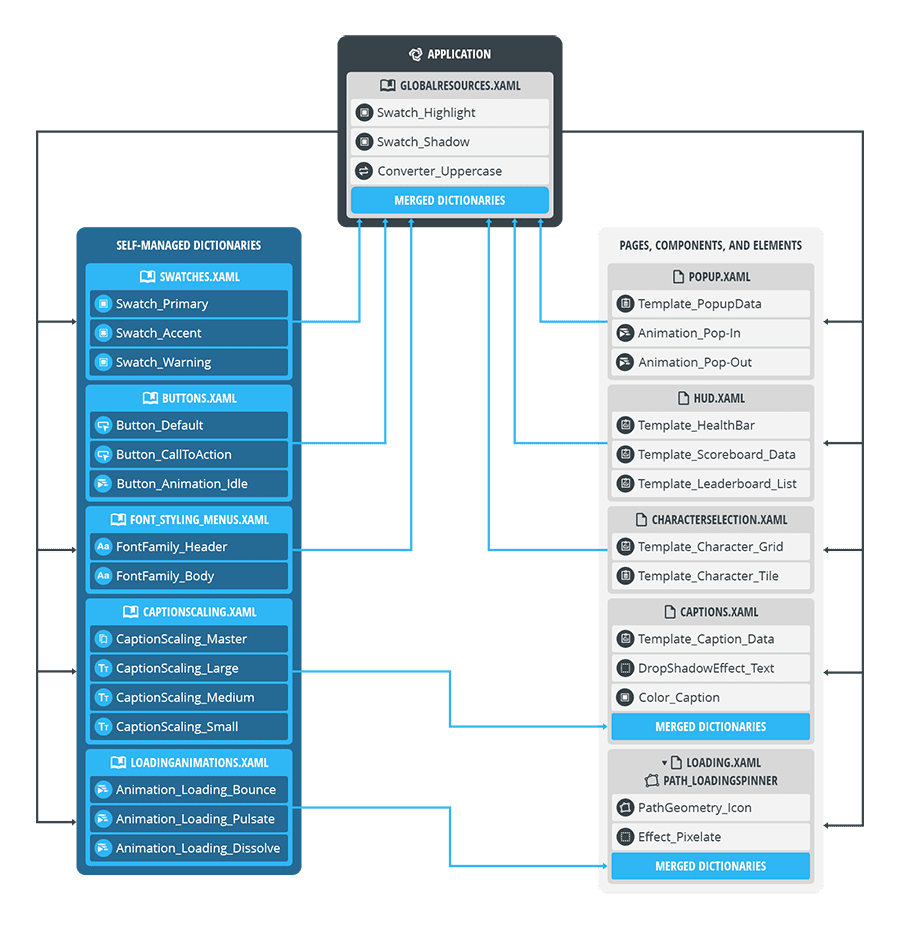
A centralized Resource can be stored in one of three locations:
Application GlobalResources Dictionary
Resources stored in GlobalResources.xaml can be leveraged from anywhere in the application without needing to set up any manual references to them. This is typically the best storage solution for items used throughout the entirety of the interface, and which don't require custom structural organisation (such as wanting to separate out Resources into individual, 📑 Self-Managed ResourceDictionaries).
As GlobalResources represent the most accessible, flexible, and oftentimes highest-performance method; storing Resources at the application level is the default behaviour in Studio.
The role of the application-level 'GlobalResources' can be seen in the above diagram. Note how GlobalResources.xaml feeds into all files across the entire application, and is composed of not only Resources created within GlobalResources.xaml, but is also spreading Resources from other Dictionaries and Pages/Components that have been 'merged' (linked) into it. Learn more about 📑 Merging ResourceDictionaries .
A GlobalResources.xaml ResourceDictionary is automatically created by default in the root directory of the Project when the 'Create in: Global Resources' option is selected when 📑 Adding Resources .
Alternatively, any ResourceDictionary within the Project can be set as its 'Global Resources' Dictionary. This can be achieved within Studio by right-clicking on any ResourceDictionary file in the 📘 Assets Panel (or on the tab of any of the currently 📘 Open Pages) and selecting 'Set as Global Resources'.
Note
Only one file per Project can be set as its 'Global Resources' Dictionary.
Setting a custom ResourceDictionary as the Project's 'Global Resources' Dictionary will unassign this role from the default GlobalResources.xaml.
To return the Project to its original configuration, the GlobalResources.xaml file can be right-clicked in Studio, and 'Set as Global Resources'.
Self-Managed ResourceDictionaries
Resources also can be created within individually-managed sheets. These Dictionaries can contain as few, or as many Resources as desired, and each self-managed ResourceDictionary can be as specific or as general as required in terms of the contents within. One particular strength of the self-managed model is that each Dictionary can be organized into a highly-customizable system of folders and subfolders.
Using self-managed Dictionaries is the recommended approach for larger, more complex libraries of Resources, where for example you may want to group font definitions, color swatches, and element templates into more manageable segmented parts, rather than packing everything together in a single large mixed-type Dictionary.
To be able to access the contents of a self-managed ResourceDictionary, it must first be 'merged' into either GlobalResources.xaml to make them accessible from anywhere in the application, or alternately, it can be merged into specific Pages or Components to have them only be accessible from the location where they are intended to be used.
Self-managed ResourceDictionaries can be seen in the left column of the above diagram. Note the CaptionScaling.xaml ResourceDictionary being the only one merged into the Captions.xaml file (as this is the only place it needs to be used), whilst the rest of the more 'universal' Resources have been merged into GlobalResources.xaml to be made accessible to the entire application as a whole.
Note
By default, ResourceDictionaries and their contents are not available to other files without first merging them to the scope in which they are intended to be leveraged.
Page, Component, or Element Level Resources
Resources created at the Page, Component, or Element level are natively only accessible from within where they are created. This is an ideal solution for properties that are applied within their scope, but not used anywhere else.
If a Resource is originally created within a Page, Component, or Element, but needs to be used elsewhere, it can be moved to either the aforementioned GlobalResources.xaml, or to a self-managed ResourceDictionary.
The Page/Component/Element resources can be seen in the right column of the above diagram. Note in particular how the CaptionScaling.xaml Resources are completely isolated to Captions.xaml, and the 'LoadingAnimations' Resources are isolated to the 'Path_LoadingSpinner' Path Element within Loading.xaml, whilst the rest have all been made accessible to the rest of the application by 'merging' them into GlobalResources.xaml.
Zones
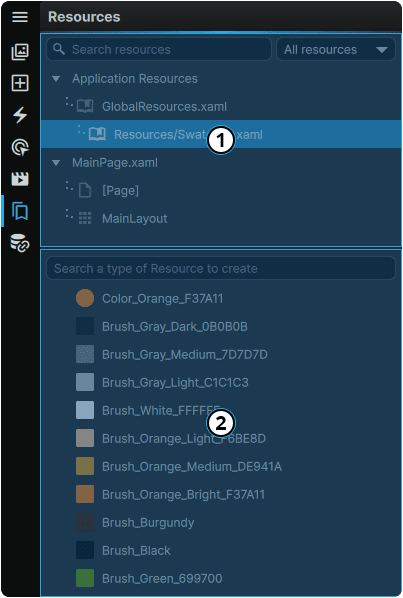
| ① Scope Browser | The Scope Browser displays all of the Resource collections accessible to, and merged into the currently-active document.
To make a file 'active', it must first be selected from the 📘 Assets Panel to display any Resources it contains (other than the universally-accessible GlobalResources.)
It is also important to note that both the GlobalResources.xaml as well as any individual self-managed ResourceDictionary, are files in their own right, and can therefore also be opened from the 📘 Assets Panel to view, or edit their contents.
Because ResourceDictionaries are treated as documents, to apply any Undo Ctrl (Hold) + Z or Redo Ctrl (Hold) + Y actions within them, they must first be opened, and set as the 'active' document open on the Stage.
|
| ② Resource Browser | Displays a list of all individual Resources contained within the scope selected in the Scope Browser.
Resources can be moved from their current Dictionary to another one by clicking-and-dragging the Resource from the lower Resource Browser into the desired Dictionary within the upper Scope Browser.
|
Resource Operations
Adding Resources
Resources can be created by first selecting the destination ResourceDictionary in the Resource Panel's upper Scope Browser, then navigating down to the Resource Browser, expanding the "Search a type of Resource to create" dropdown, and selecting the desired Resource.
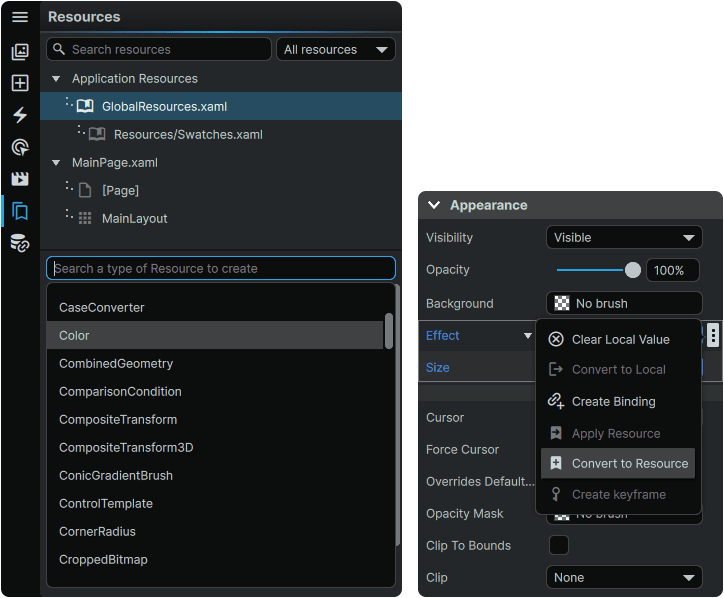
Resources can also be created directly from their respective Properties within the Properties Panel of an Element, by first setting a value for the Property, then selecting "Convert to Resource" from within the Property's 3-Dot context menu.
Renaming Resources
Renaming a Resource can be completed by double-clicking on aa Resource name in the Resource Browser, and inputting a new name.
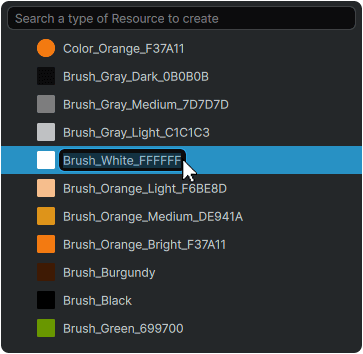
Renaming a Resource will automatically update its name wherever it is referenced throughout the Pages, Components, and Elements where its used.
Deleting Resources
Clicking on the 🗑 (Delete) icon to delete a Resource will permanently delete the Resource from the Dictionary in which it was contained.
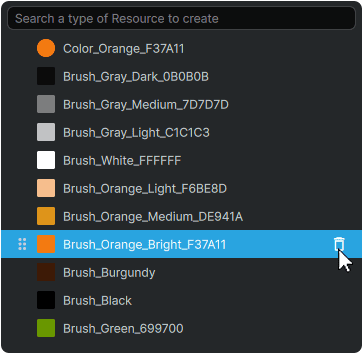
Moving Resources
Moving a Resources to a different Dictionary can be completed by clicking-and-dragging it into the desired Dictionary.
Filtering Resources
Resources can be filtered either by name via the 'Search resources' field, or by resource type using the filter dropdown menu.
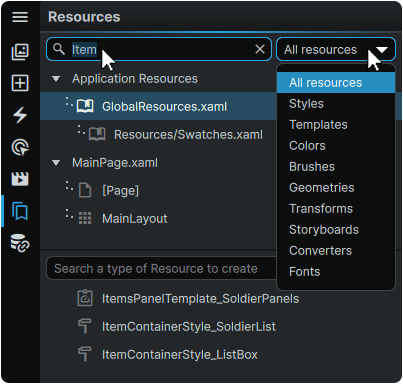
To turn filtering off, either clear the 'Search resources' field of text, and/or return the filter dropdown to 'All resources'.
ResourceDictionary Operations
ResourceDictionary Creation
New Dictionaries, which can contain any number of Resources, can be created directly from the Resources Panel.
Dictionaries can also be created from the 📘 Assets Panel by hovering over any folder, and selecting 'New ResourceDictionary'. The new ResourceDictionary will be created within the folder that was hovered upon when selected.

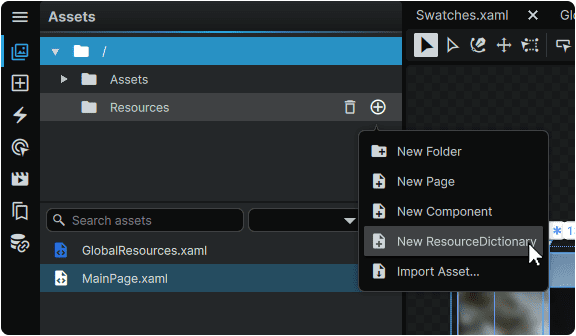
Renaming a Resource will automatically update its name wherever it is referenced throughout other files.
ResourceDictionary Merging Overview
One particularly powerful feature is the ability to merge, (or 'link') ResourceDictionaries into individual Pages, Components, Elements, or other Dictionaries (including the application-wide 'GlobalResources' Dictionary).
Merging allows for a Resource to be included in, and made accessible to other files, without needing to manually copy them to each place where they are intended to be used.
At a practical level, this means that any change to a Resource only needs to be made once at the source where it is defined. Once saved at the source, it will automatically update in all instances where it is employed. This reduces maintenance overhead significantly compared to a model where any change would need to be updated multiple times across multiple locations.
The reason for which all Resources are not automatically and systematically merged into all files, is that there exist certain use cases where this would not be desirable, such as:
| Name Conflicts | Some Resources may intentionally share the same name, and conflicts could arise if they were to be non-discriminately merged.
For example, there may be two instances of a Button Template named Button_CallToAction, one part of an InterfaceTheme_1.xaml ResourceDictionary and one part of an InterfaceTheme_2.xaml ResourceDictionary.
In this scenario, selecting a theme only requires swapping between the two files, whilst all buttons in the UI can simply refer to a Button_CallToAction Template.
If both themes had been automatically merged, the interface would not know whether to display the Call to Action Button from InterfaceTheme_1.xaml or InterfaceTheme_2.xaml.
|
| Application Optimization | It is generally considered ineffecient to load in any materials that are not strictly required for the presentation and operation of an interface.
Merging a large ResourceDictionary of content that is not used could consume bandwidth that could otherwise be used to load in UI as fast as possible.
Similarly, any interface containing an excess of merge operations can sometimes also adversely affect performance.
|
| Encapsulation and Ease-of-Use | It can be beneficial to decrease the cognitive load associated with complex file management, and a reduction in scope can oftentimes make creation and maintenance operations easier to perform.
For example, electing to not merge HUD-specific Resources into MainMenu.xaml results in not having to sift through HUD-only content when building out screens.
|
Merging ResourceDictionaries
ResourceDictionaries can be merged into Pages, Components, Elements, and other ResourceDictionaries by first setting the desired target of the merging operation as the active Page, or Element on the Stage.
Once the target has been set as active document, the merge function can be accessed hovering over the target file name in the Resources Panel, clicking on the ⊕ (Merge) icon, then selecting the Dictionary to merge into it.
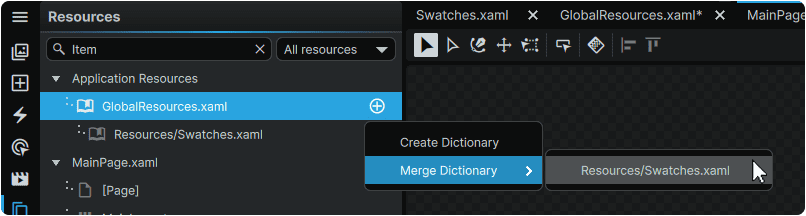
When the merging is complete, the merged ResourceDictionary will appear as a child of the target file in the Resources Panel.
Unmerging ResourceDictionaries
ResourceDictionaries can be unmerged by first selecting the ResourceDictionary to which it has been merged, then hovering on the ResourceDictionary to unmerge, and clicking on the 🗑 (Unmerge) icon.
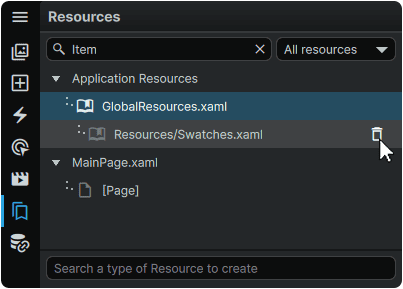
Unmerging a ResourceDictionary will make any Resources contained within it, no longer accessible from within the scope of where it was removed. If no action is taken to mitigate this by clearing or reconfiguring local values to no longer point to the unmerged (or soon-to-be unmerged) Resources , functional and presentation breakages within the interface could occur.
Unmerging a ResourceDictionary does not delete it from the project. To delete a ResourceDictionary, it must be deleted from either the 📘 Assets Panel or directly from the operating system file explorer.
Organizing ResourceDictionaries
Self-Managed ResourceDictionaries can be organized into custom folder hierarchies from the 📘 Assets Panel, using the same methods as other Asset types.
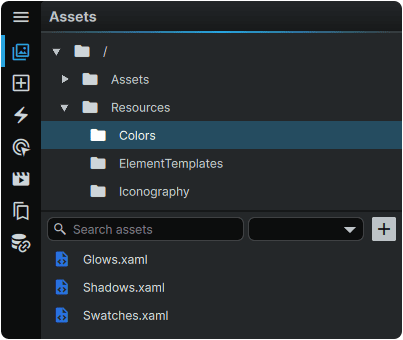
Moving, or renaming ResourceDictionaries will automatically update any references to them from wherever they are used.
Deleting ResourceDictionaries
ResourceDictionaries can be deleted by navigating to the 📘 Assets Panel, and clicking on the 🗑 (Delete) icon that appears when hovering over the Dictionary's file.
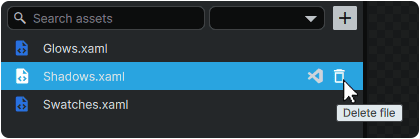
It is important to note that deleting a ResourceDictionary which contains Resources that are used within the interface, may break certain aspects of their function and/or presentation. It is therefore recommended to first configure their newly-intended properties before deleting the ResourceDictionary.
Further Reading
To dive deeper into practical applications of Resources, we recommend the following tutorials:
Function Panels
- 📘 Assets Panel
- 📘 Add Element Panel
- 📘 Interactivity Panel
- 📘 Animation Panel
- 📘 Resources Panel
- 📘 Data Panel